Set up the yEd palette
Before you can draw an Extended Matrix in yEd, you need to install the EM palette so the canonical node shapes are available in the canvas. This setup is a one-off operation per yEd installation.
Prerequisites
yEd Graph Editor installed on your machine (free for personal and academic use).
The Extended Matrix palette template (
.graphmlfile), distributed as a zip archive — see EM workspace preparation for download links to the canonical EM workspace materials.
Steps
Download the palette zip from the canonical EM workspace distribution. Unzip it on your file system. Do not open the ``.graphml`` file directly — it is a template to be imported into yEd, not a graph to be edited.
Open yEd Graph Editor. A blank canvas appears.
From the menu bar, choose Edit → Manage Palette….
In the Manage Palette dialog, click Import… (lower-left area depending on yEd version).
Select the EM palette ``.graphml`` template you unzipped in step 1. Click Open.
The palette appears in the right-hand column of active templates in the Manage Palette dialog, labelled Extended Matrix palette. Make sure it is enabled (checked).
Close the Manage Palette dialog. Back on the canvas, the palette panel on the right side of yEd now shows Extended Matrix palette as the last entry. All EM node types (US, USV, USD, SF, RSF, …) are available from here — drag them onto the canvas to start authoring your matrix.
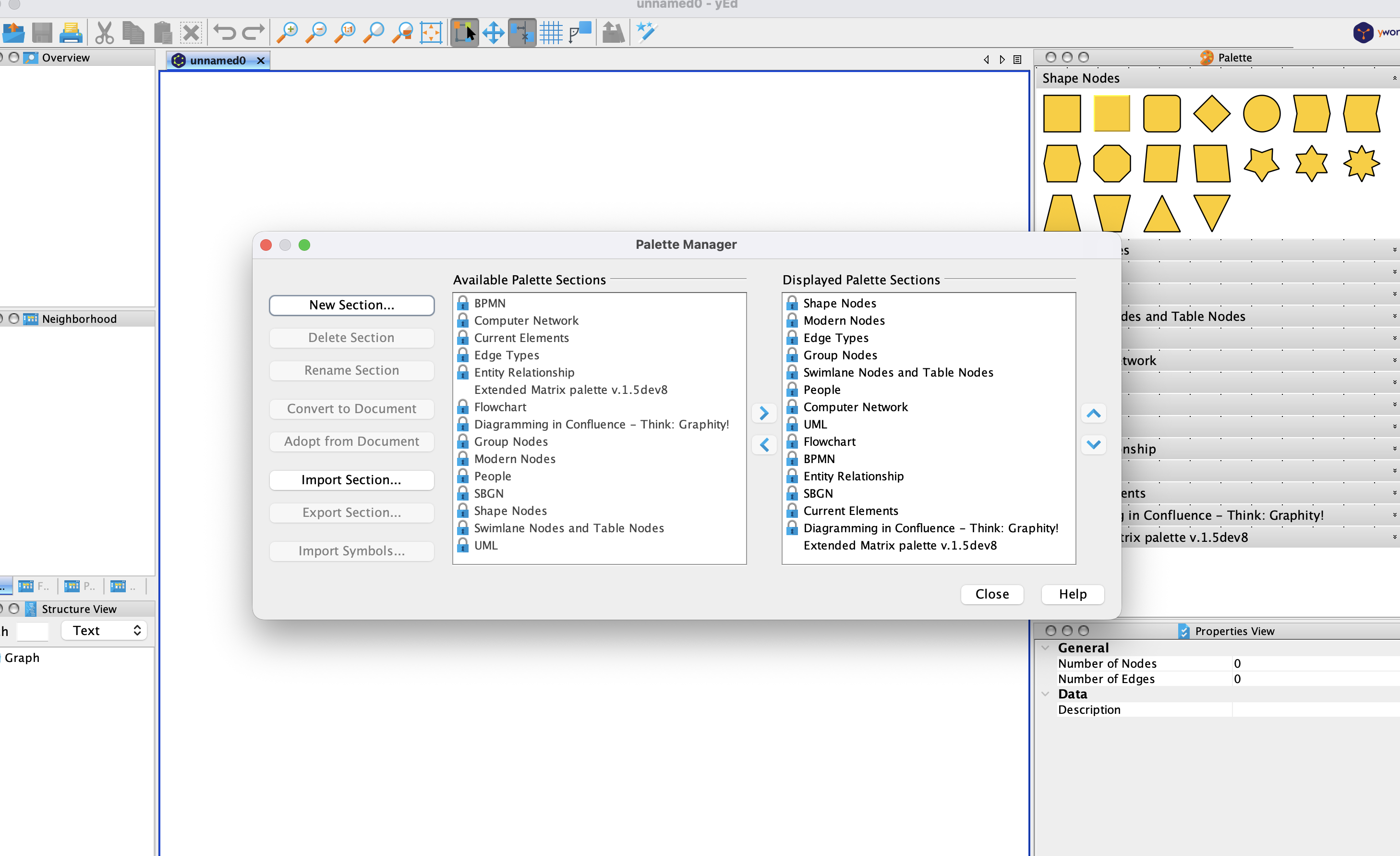
Fig. 29 The yEd Manage Palette dialog after importing the Extended Matrix template. The palette appears in the right-hand column of active palettes.
Next steps
With the palette in place, head to Draw the Extended Matrix in yEd to start authoring your stratigraphic graph.
See also
EM workspace preparation — the broader scene setup (folder structure, DosCO, source register)
Draw the Extended Matrix in yEd — using the palette in practice