Anastylosis Manager (RMSF)
Recommended prerequisite — The Golden Twelve
Before you author proxies, build LOD geometry, or work with semantic shapes in Blender, make sure you have the foundational shortcut grammar fluent. The Golden Twelve is a two-page reference card covering the twelve keyboard-shortcut command families that appear in every EM modelling workflow — navigation, selection, add & position, transform, edit mode, extrude, loop cut, knife, duplicate, parameters panel, modifiers, render. The shortcuts have been stable since Blender 1.0 (1995), so the skill survives every future Blender release.
Cite as: Demetrescu, E. (2026). The Golden Twelve: Reference Card for 3D Cultural Heritage Modelling (v1.0). Zenodo. doi:10.5281/zenodo.21068528 (CC-BY-SA 4.0). A companion paper is in submission to Digital Applications in Archaeology and Cultural Heritage.
See also
In the Extended Matrix language manual:
Special Finds, Virtual Special Finds and Reused Special Finds — the SF / VSF / RSF nodes anchored by the RMSF rows.
Note
Performing anastylosis with EM Tools
Anastylosis — the reassembly of a structure (wall, column, frieze) from its scattered or re-used fragments — is a core EM Tools workflow. The Anastylosis Manager panel described below lets you align 3D-surveyed pieces or drawn-from-source fragments into a coherent reconstructive ensemble. Each piece is exposed as a Representation Model Special Find (RMSF) row carrying two orthogonal links: one toward the SpecialFind / Virtual SpecialFind node (the identity of the fragment across epochs) and one toward its source Document (the paradata / provenance of the geometry). The graph backbone tracks the evidence chain throughout: each fragment carries provenance, each alignment is paradata-supported, and the final ensemble is publishable as a documented reconstruction. See the Workflow section below for the step-by-step procedure.
The Anastylosis Manager handles Representation Model Special Find (RMSF) meshes — typically photogrammetric or laser-scan models of movable archaeological objects — and the associations that turn each mesh into a useful node of the Extended Matrix.
The panel is located in the EM Annotator tab.
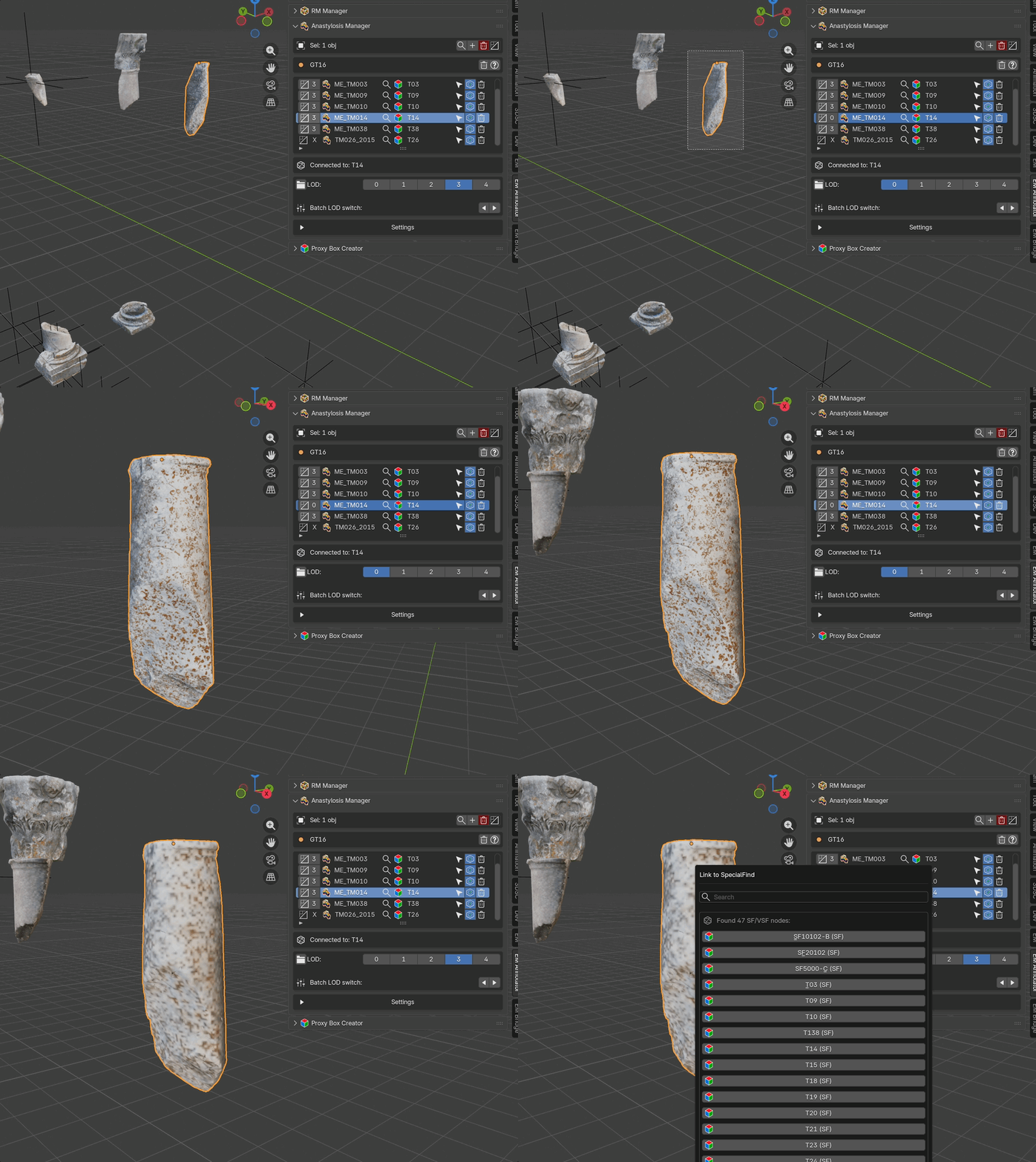
Fig. 65 RMSF panel demonstration
Why two associations?
Each RMSF row carries two distinct links, and they live on orthogonal axes:
RMSF → SpecialFind (SF / VSF) is the temporal / identity axis. A movable object is the same entity even when it changes location, orientation, or fragmentation across time. The SF node owns that identity; the RMSF mesh is just the geometric snapshot we use to render it. Multiple RMSF meshes can therefore point at the same SF, that in turn can be instanced in different epochs with different properties (position, orientation, fragmentation) through the dotted connector that links SFs to each other in the graph encodes the diachronic transformation of the object (e.g. the fragment of the column found in non origianl position at epoch N and the same fragment repositioned in the original position at epoch N-1).
RMSF → Document is the paradata / source axis. The mesh comes from a measurement or survey campaign (photogrammetry, laser scan) — its trustworthiness, license, embargo, and the right to extract derived information (sections, diameters) all hang off the source document. Without this linkage the downstream knowledge-extraction tools (Surface Areas, Proxy Box, measurement extractors) have no provenance to attach the new paradata to.
In one sentence: the SF link answers which object (and when); the Document link answers where the geometry came from and what we are allowed to do with it. Each row therefore exposes one picker per axis.
Panel Layout
Selection Operations (top area, visible when objects are selected):
Sel: N obj(s)labelSelect in List from Active Object— highlight the active 3D object in the listAdd Selected Objects— add selected meshes to the RMSF listRemove Selected from Anastylosis— batch-remove (with confirmation)LOD batch menu (only when at least one selected object has LOD variants)
Header:
Active graph code indicator
Clean Missing Rowsbutton — removes list entries whose mesh has been deleted from the scene
Main List — compact, association-focused row:
[LOD] [RMSF] [name] [🔍 SF] [SF name | "[---]"] [🔍 Doc] [Doc name | "[---]"] [📤 publish] [🗑 delete]
LOD — current Level of Detail (0–4); click to open the LOD menu.
Xwhen the mesh has no LOD variants.RMSF icon + name — custom icon for healthy rows,
ERRORicon when the underlying mesh is missing.🔍 SF + SF name — magnifying-glass opens the SF / VSF picker (search by name, or click
+ New SFto create one through the shared Add-US dialog with the type locked to SpecialFind). Placeholder[---]when no SF is linked.🔍 Doc + Doc name — magnifying-glass opens the Document picker (search the catalog or create a new master via
+ Add New Document...). Placeholder[---]when no Document is linked. The picker writes ahas_representation_model_docedge in the graph, so any tool that reads paradata from the RMSF (Surface Areas, Proxy Box) picks the document up automatically.📤 publish — flag the row for export.
🗑 delete — remove the row (with confirmation).
Scene-selection actions (jump to the SF proxy in the viewport, jump to the Document in the catalog) live in the detail panel under the list, not on the row itself, to keep the row reserved for associations.
Detail Panel (visible when a row is selected):
Chain summary —
RMSF → SF → Docwith placeholders where missing.Select RMSF— select the RMSF mesh in the 3D viewport.Show Document— highlight the linked Document in the Document Manager catalog.Clear Document— drop just the Document association (leaves the SF link intact).
LOD Management (when the selected item has LOD variants):
Open Linked File— open the source.blendof a linked meshLOD level buttons (0–4) — switch the selected item to a specific LOD
Batch LOD arrows — shift every item one LOD up or down
Settings (collapsible):
Zoom to Selected— auto-zoom the viewport on row click
Workflow
Import the RMSF mesh — a single OBJ, a batch via 3D Survey Collection, or a linked
.blend.Position the mesh anywhere in the scene.
Add to the list — select the mesh and click
Add Selected Objects. The row appears with both SF and Document showing[---].Link to a SpecialFind. - Existing SF / VSF: click 🔍 SF, search, pick. - Brand-new SF: click 🔍 SF then
+ New SF— the shared Add-USdialog opens with the type pre-selected and locked to SpecialFind. After confirm the new SF is automatically linked to this RMSF row.
(Recommended) Link to a Document — click 🔍 Doc, search the catalog, or click
+ Add New Document...to mint a fresh master. Without a Document the RMSF cannot feed Surface Areas / Proxy Box knowledge-extraction tools.(Optional) Switch LOD — click a LOD number on the row or in the detail panel.
(Optional) Mark for export — toggle the publish flag.
When a Document is later swapped via the same picker, the previous
has_representation_model_doc edge is dropped automatically so the
graph stays consistent.
Anastylosis Manager Overview
The Anastylosis Manager coordinates reconstructions built from real fragments (SF) and virtual ones (VSF). Each entry pairs a 3D object in the scene with both an SF node and a Document node, exposing graph and geometry actions from a single panel.
Typical workflow: promote selected meshes to the list, link them to the corresponding SF/VSF node and to the source document, switch between LODs for preview vs. publication, then rely on the Export Manager to publish the linked scene together with the paradata.
Anastylosis Target (SF / VSF)
The target of the SF axis is the SpecialFind (SF) or Virtual SpecialFind (VSF) node the 3D object represents.
SF — a real fragment found on site.
VSF — a hypothetical fragment introduced during reconstruction.
The connection is materialised by a has_representation_model edge
between the SF / VSF node and the RMSF node (the list entry). From
the row you can search the graph (🔍 SF) or create a new SF (+ New
SF); the detail panel below the list lets you select the RMSF mesh
in the viewport.
The Document axis is independent and uses
has_representation_model_doc — same edge type the RMDoc panel uses
for spatialised document quads. This keeps the doc-specific paradata
chain visually distinct from the temporal SF chain inside yEd /
GraphML viewers.
Anastylosis Fragments (LOD)
Each RMSF can have multiple LOD variants (LOD0 … LOD3). When LODs are detected, the panel shows a row of LOD buttons:
Click a number to swap the active LOD for the selected item.
Use the batch arrows to shift all items one LOD level up or down at once, keeping the reconstruction coherent.
Open Linked Filejumps to the source.blendwhen the mesh is linked from a library.
LOD switching preserves transforms, materials and graph connections; only the mesh data-block is reassigned.