Bulk Import via the Excel Mapping Tool
Todo
Embed YouTube video — placeholder slug 16_em_mapping_tool.
Once the recording is uploaded, replace this todo with a
.. raw:: html iframe pointing at the real YouTube video ID.
Working title: Bulk Import via the Excel Mapping Tool (~~4 min).
Prerequisites
Auxiliary Resources: pyArchInit and External Data Connections
Overview
Import thousands of SUs from an Excel spreadsheet using a JSON mapping file. The mapping file defines which Excel column maps to which EM property (human ID, material qualia, epoch, etc.). Demonstrated with the Basilica Iulia dataset: 2,039 SUs and 1,088 properties imported in seconds.
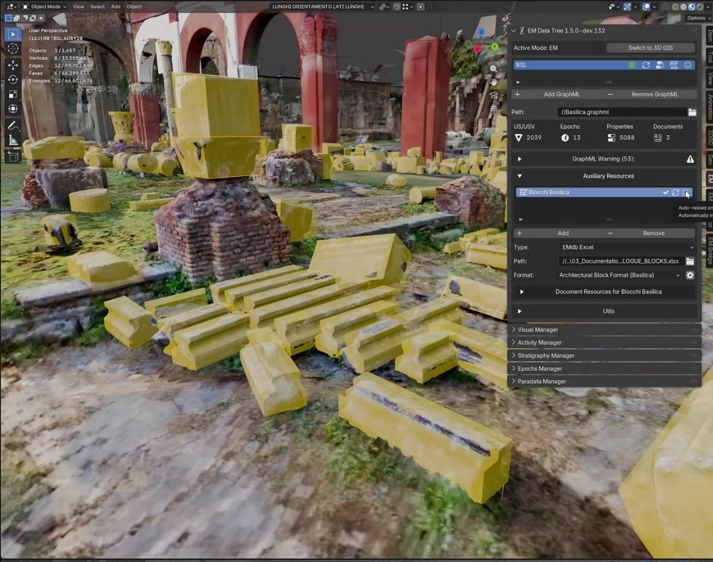
Fig. 30 Basilica Iulia dataset overview: 2,039 stratigraphic units.
Key Concepts
The mapping file is JSON: version, sheet name, start row, and column-to-property mappings.
Any Excel column can map to: human ID, epoch, node type, or a qualia property.
The import creates nodes, connects them, and assigns all mapped qualia automatically.
After import, the Visual Manager can filter by any mapped property (e.g., material type).
Screenshots

Fig. 31 The JSON mapping file: version, sheet, start row, column definitions.
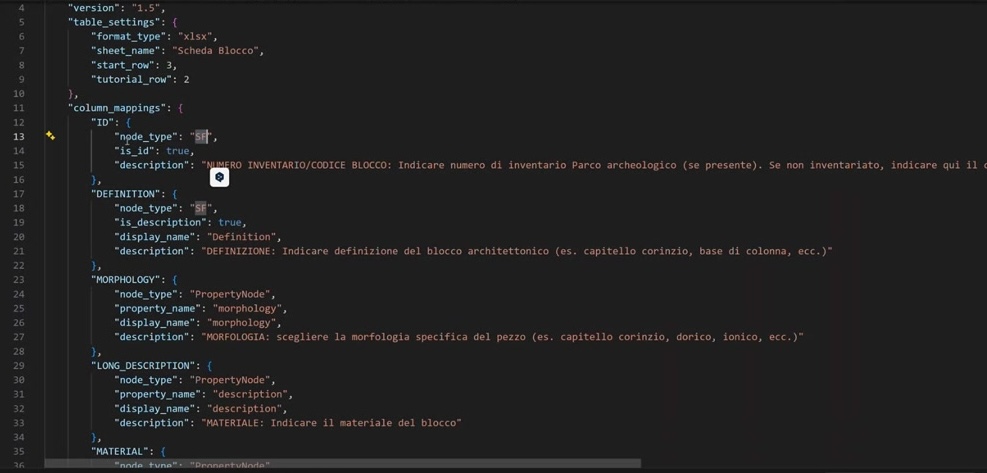
Fig. 32 Column mapping: Excel column → EM property (human ID, material qualia).
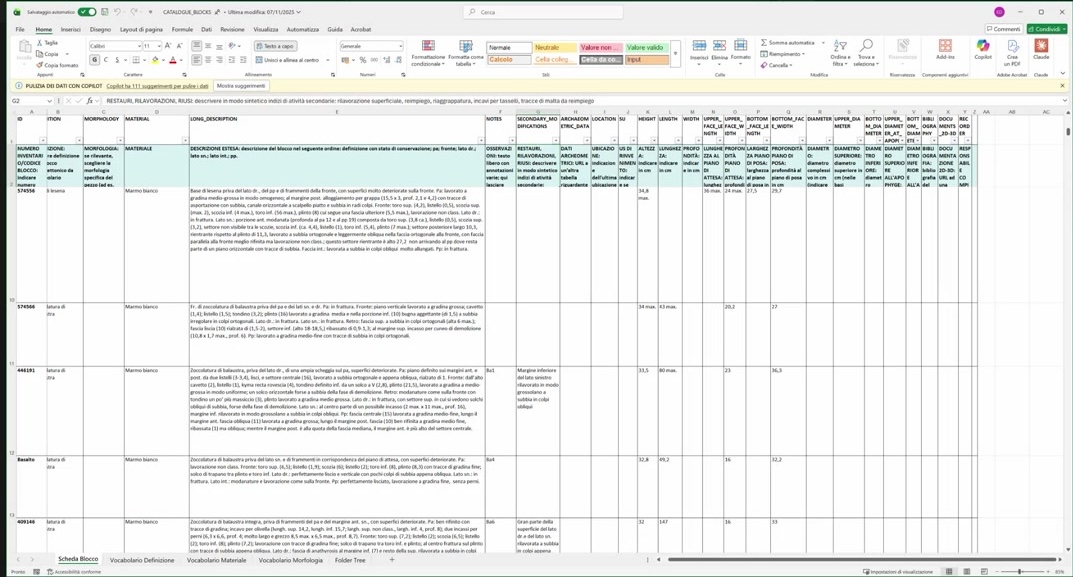
Fig. 33 Import result: 1,088 properties created in the graph.

Fig. 34 Visual Manager filtering by material type after import.
Try It Yourself
Create a mapping file for a 10-row sample spreadsheet and import it into a new EM.
Note
A video walkthrough for this tutorial will be available on the Extended Matrix YouTube channel.