Exporters
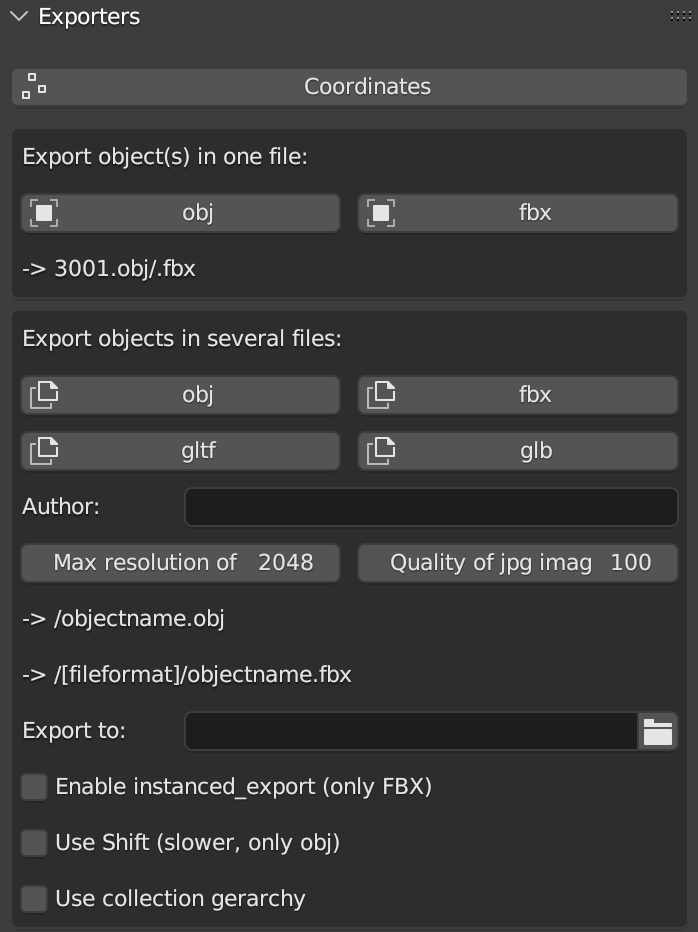
Fig. 44 Exporters panel
This panel (Fig. 44) is divided in three sub-sections: Coordinates, Export object(s) in one file and Export objects in several files.
The Coordinates button allows to export every type of coordinates (.txt file) associated to an object (such as: points, meshes, cameras etc..) imported in the 3D space of Blender. After pressing the button, the export window will appear.
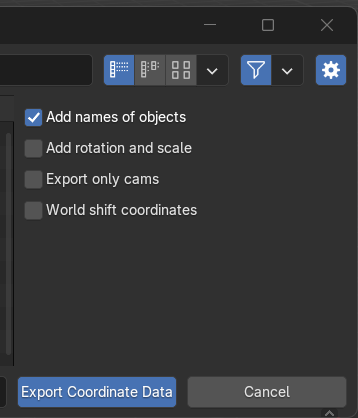
Fig. 45 Exporter window options
To customize the export of these data the user can flag specific options (Add names of objects; Add coordinates of rotation; Export only cams; World shift coordinates) placed on the right side of the export window (Fig. 45).
The other two Exporters execute the same (export) action, with two different results. The Export object(s) in one file section allows to export, one or multiple objects, in a single file. By clicking the obj or fbx button, the user can choose between two different export file formats (.obj or .fbx). The name of the exported object appears directly below the obj and fbx buttons. By default, the name corresponds to the selected object.
Before starting the export process, the user has to define the correct path of the folder where file(s) will be saved.
Remember
Before closing the path window, it is recommended to uncheck the relative path option in the export window settings. Alternatively, within the export panel of 3DSC, it is possible to directly paste the entire path into the empty field and then confirm by pressing the Enter button.
The second option (Export objects in several files) allows to export selected objects in several files (obj, fbx, gltf, and glb). Before exporting the objects, the user can also define properties such as: author, texture resolution, and texture quality. Also in this case, a preview of the name associated with the exported objects appears directly below the Max resolution and Quality buttons. By default, the name of each exported objects corresponds to objectname.fileFormat.
By activating the Use shift options, 3DSC will export only obj files with the corresponding shift. This option will permit to import these geometries within software that can manage georeferenced data. For example, this option will be useful with tiles that need to be textured within a photogrammetric software, as explained in the next sections.
The Exporter tool of 3DSC allows also to export instanced objects. To export this type of objects it is necessary to:
place in x=0, y=0, z=0 the instanced object with location, scale, and rotation applied (ctrl+a command within the viewport of Blender);
select all the objects to be exported and then select the object in 0,0,0;
click the Coordinates button in the Exporters panel of 3DSC;
locate the folder where the .txt file has to be saved and set the name of the file
flag the right options (Fig. 45)
press the Export Coordinate Data button.
This procedure will create a .txt file with the locations of to the instanced object. This procedure will work also for obj, fbx, gltf and glb.
At the bottom of the Exporter panel, the option Enable instanced_export (only FBX), if selected, activates an automatic procedure available only for .fbx files. This procedure requires, first, the selection of a group of objects and, then, the add-on will generate a single file [name]-inst.txt using the name of the active object.
In the same part of the panel the user can also select two others options: Use Shift (slower, only obj) and use collection gerarchy.
The option Use Shift (slower, only obj) permits to export obj file(s) with shift values. This process may be slower with big obj file(s).
The option use collection gerarchy consents to apply collection gerarchy for creating a tree of subfolders useful for Game Engines.