LOD Manager
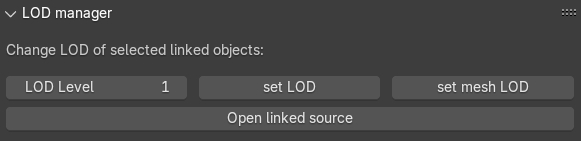
Fig. 51 LOD Manager panel
This panel (Fig. 51) consents to change the LOD for each tile related to a high-res 3D dataset (such as, a photogrammetric survey of an archaeological context), previously segmented using the Segmentation tool of 3DSC, displayed in the viewport of Blender.
By using LOD manager it is possible to visualize in Blender different tiles, related to the same 3D dataset, with different LODs.
Remember
LOD manager can be employed only if LODs have been previously generated.
The tool allows to visualize two different linked data: objects or meshes. To import linked data in Blender these simple steps must be followed:
Press File -> Link…;
Locate the .blend (all the options displayed on the right side of the window can be selected. If any issues occur, deselect the Relative Path option);
If the imported linked data do not require modifications in scale and position, select the Object folder and then select the desired objects;
If the imported linked data require modifications in scale and positions, select the Mesh folder and then select the desired meshes.
Linked data (objects or meshes) can be grouped in different collections of Blender. By following the EM methods, these data should be stored within the same collection, for example the RB collection (that is, Reality Based collection), or in multiple collections.
Remember
It is not recommended to store linked data in sub-collections (such as, sub-RB). In that case, after setting LOD level and pressing set LOD or set mesh LOD, 3DSC will automatically display an error message and create a linked object, or mesh, within the main collection RB.
To visualize LODs related to linked object:
select a linked object;
Set the LOD value to be visualized;
press the “set LOD” button.
To visualize LODs related to linked meshes:
select a linked mesh;
Set the LOD value to be visualized;
press the “set mesh LOD” button.
This type of tool allows to manage the visualization of large datasets which have already been segmented (using the Segmentation tool). Using this tool users can view different tiles of the same 3D mesh with different LODs
Remember
This tool can be employed only if LODs have been previously generated
To visualize a specific LOD: first, select an object that has been previously processed with the LOD generator tool; second, enter the desired LOD to be visualized; third, press the set LOD button.